Instructions: from download to your first knowledge base
This walkthrough takes you from downloading the plugin to a dummy project that has an Uzzo Knowledge Base (KB) in it. It takes about ten minutes.
Prerequisites
- Apache NetBeans 28, the version the plugin is built against
- JDK 21 or later
- Maven (the Maven bundled with NetBeans is fine)
1. Install the plugin in NetBeans
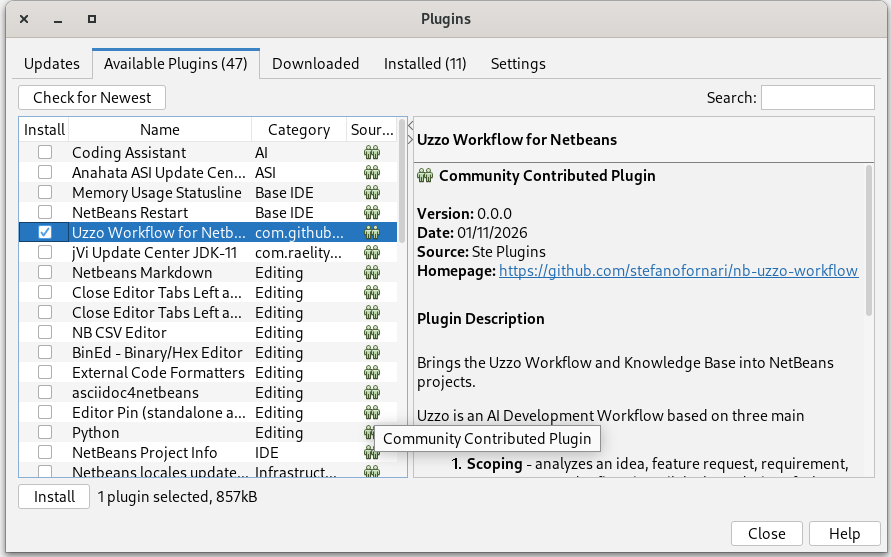
- In NetBeans, open Tools → Plugins.
- Select the Available Plugins tab and select Uzzo Workflow for NetBeans.
- Click Install.
- Follow the installer: accept the license and, if prompted, trust the unsigned plugin.
- Restart NetBeans if asked.
1. Create a dummy project
You only need a project to hold the knowledge base. The initialization action is available on Maven projects, so create a small one.
- Choose File → New Project….
- Select Java with Maven → Java Application and click Next.
- Name it
uzzo-demo, pick a location, and keep the default Group Id and Version. Click Finish. - The project appears in the Projects window.
4. Initialize the knowledge base
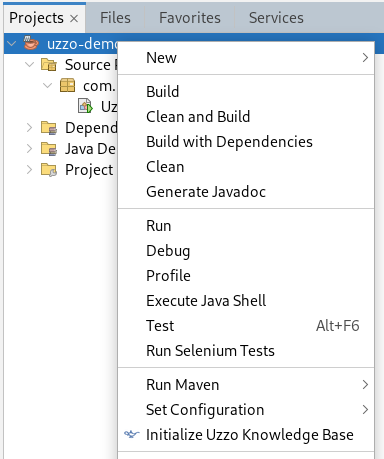
- Right-click the
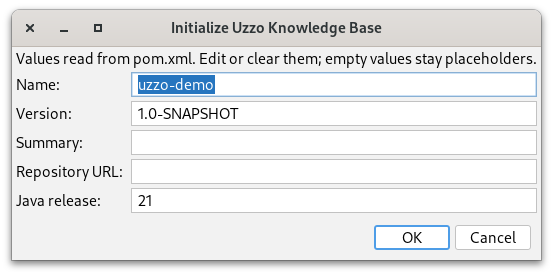
uzzo-demoproject and choose Initialize Uzzo Knowledge Base. - A dialog proposes the project facts it read from your
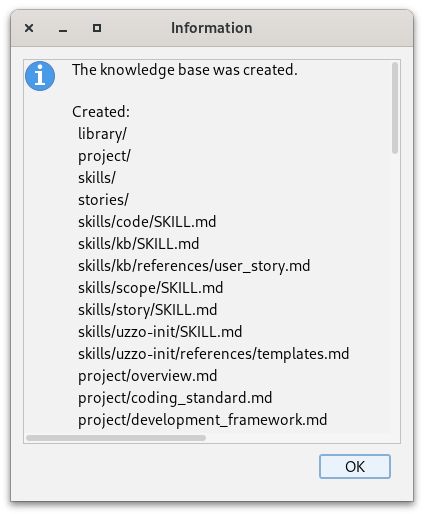
pom.xml: Name, Version, Summary, Repository URL and Java release. Edit them, or clear any you don’t know yet: empty values stay as placeholders. - Click OK. The knowledge base is created in the background, and a report lists what was created, skipped, left as placeholders or found incomplete.
Initialization is additive: it never overwrites or deletes existing files, so it is safe to run on a project that already has some content.
 `
5. Explore the knowledge base
The project now has a top-level uzz/ folder with four directories:
uzz/
├── library/
├── project/
├── skills/
└── stories/
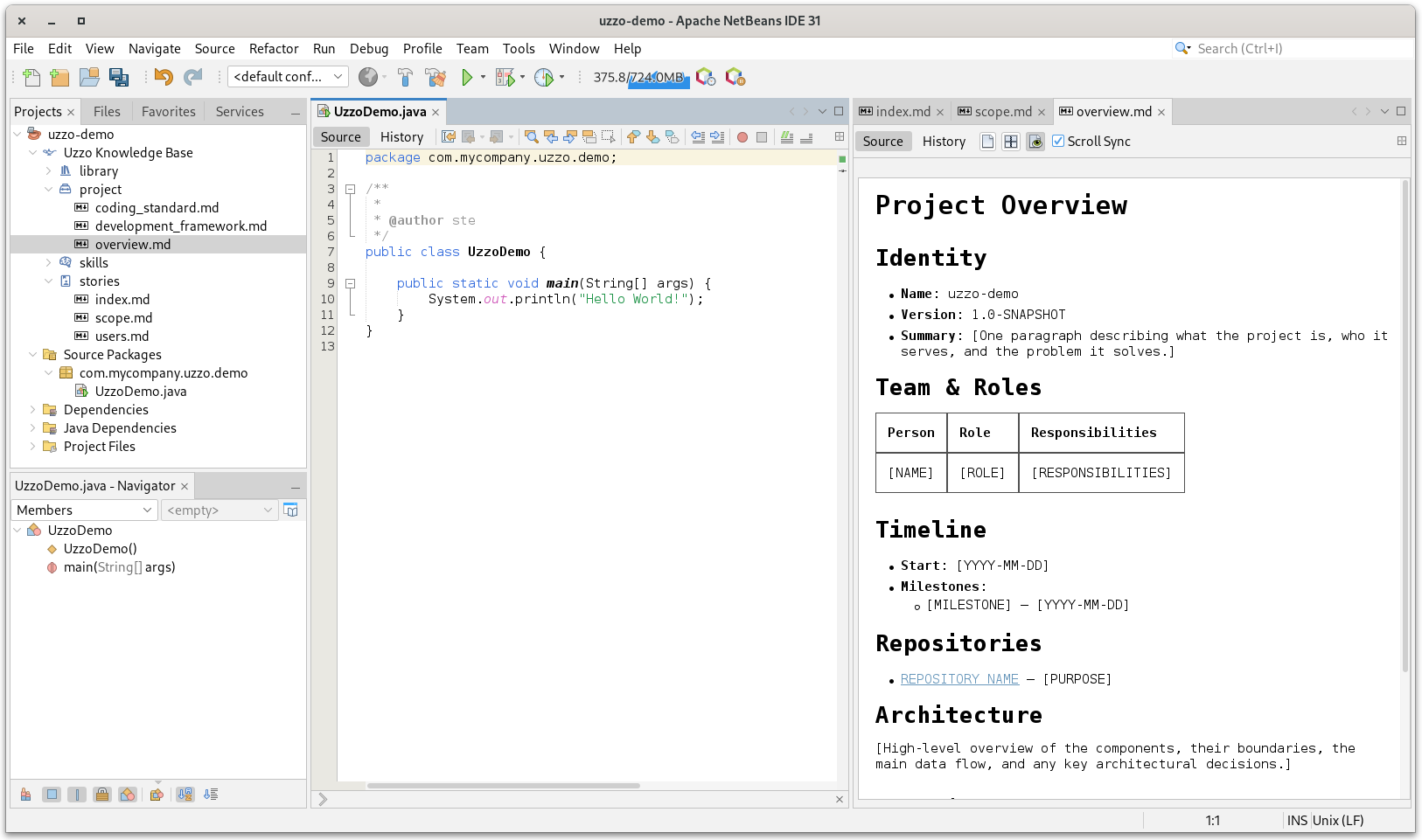
In the Projects window, the folder shows as the Uzzo Knowledge Base node, with an Aladdin’s lamp icon, just above the source folders. Expand it to browse the seeded workflow skills and articles.
Open a document, for example one under project/. It opens in a separate editor deck on the right of the IDE, so the knowledge base stays next to your code. Values the initializer could not know are bracketed placeholders such as [PROJECT NAME]: replace them as you go.
Keeping it in sync
- If files change outside the IDE, for example when an AI agent writes to the knowledge base, expand a folder or run Refresh Knowledge Base to see them.
- If the structure is incomplete, right-click the project and choose Repair Uzzo Knowledge Base. Once a knowledge base exists, this replaces the Initialize entry. Existing content is left untouched.
What’s next
Read how the workflow works on the Uzzo Workflow site: the scoping phase and the knowledge base conventions.